⚠ Invite Only PlayOver for Twitch is in testing ahead of its full release — access is currently invite only.
● For Streamers

PlayOver for Twitch

Show what you're playing and let every viewer open it on their own platform. PlayOver detects the music on your PC and turns it into a one-tap "Get this song" overlay — as a Twitch extension, or as a browser source in OBS for Kick, YouTube Live, and more.

Download the Windows Helper Windows 10/11 · 64-bit · Works with your desktop music apps

New to this? Follow the step-by-step setup guide — you'll be live in about five minutes.

What your viewers see.

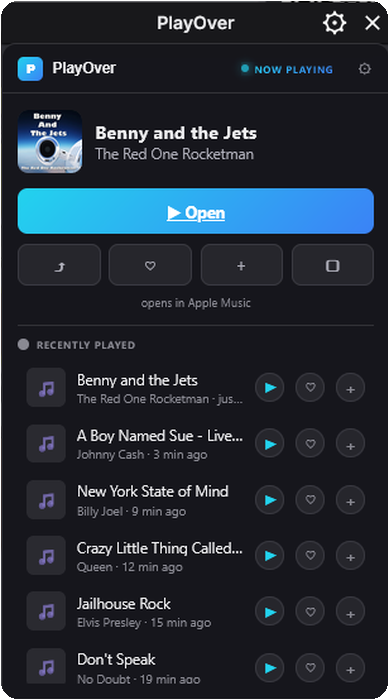
The current song sits right on your stream. Anyone watching taps it and it opens on the platform they already use — Spotify, Apple Music, YouTube Music, and more.

PlayOver overlay on a desktop stream showing the current song with Open, Save, and Playlist buttons
On desktop — as a Twitch extension, or an OBS browser source for Kick & YouTube Live.
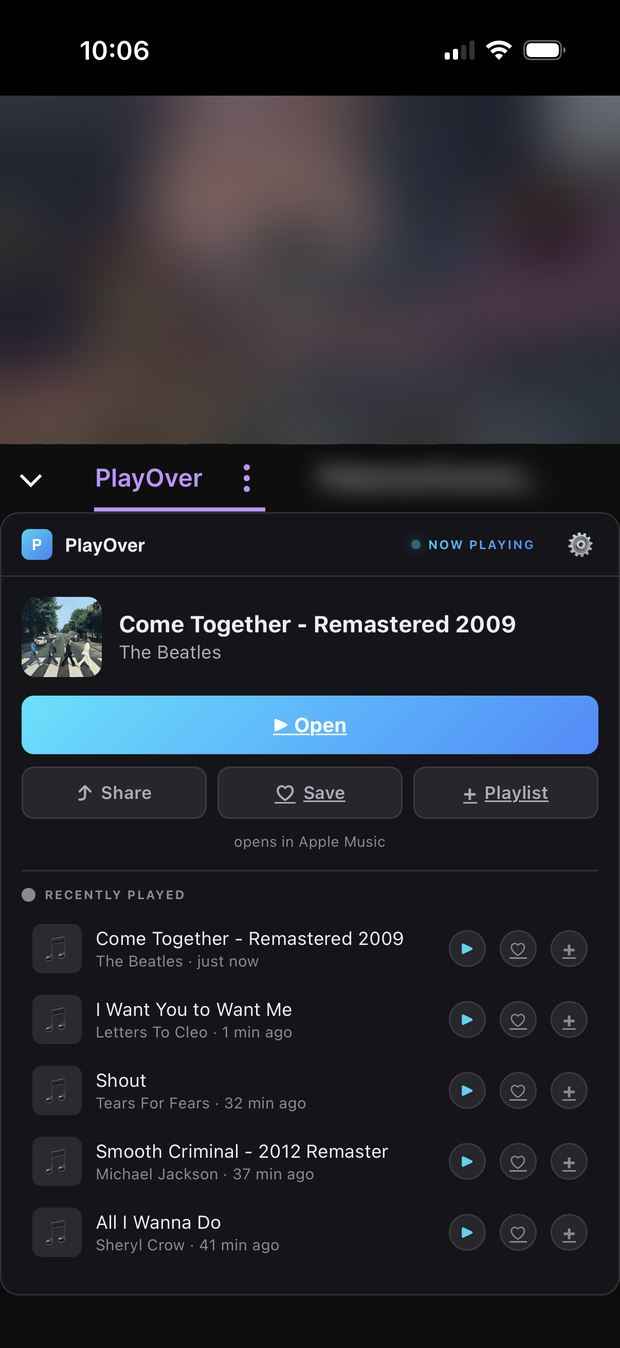
PlayOver overlay in the Twitch mobile app, opening the current song in Spotify
And in the Twitch mobile app — one tap opens it natively.

Apple Music listeners can also save the song or add it to a playlist, right from the overlay.

Your music, your viewers' platform.

🎧

Reads Your Music Apps

The helper recognizes the major desktop music apps — Spotify, Apple Music, Tidal, Amazon Music, Deezer, and more — and shows what's playing automatically, with nothing to wire up. For privacy it only reads known music apps, never your browser, so a video or stream is never captured.

🎯

Viewers Pick Their Platform

The overlay lets each viewer open the current song on Spotify, Apple Music, YouTube Music, and more — their choice, not yours. Everyone lands on the service they already use.

🖥️

Works in OBS, Kick & YouTube Live

Beyond the Twitch extension, the helper gives you a browser-source URL you can drop into OBS. That means the same "Get this song" overlay works on Kick, YouTube Live, and anywhere else that takes a browser source — one setup, every platform.

📱

Send to Phone

Viewers watching on a computer can tap the phone button to get a QR code for the current song. They scan it and it opens on their phone — on the device where their music actually lives.

🕒

Recently Played History

The overlay keeps your last few tracks on screen beneath the current one. Viewers who just tuned in — or who loved something from a couple songs back — can still open it on their platform without having to catch every song live.

Save on Apple Music

Apple Music listeners can save the current track to their library or add it to a playlist right from the overlay. Spotify doesn't permit saving or playlist changes from an overlay like this, so Spotify viewers can still open the song on Spotify — they just can't save it here.

📊

Streamer Reports

See songs opened, songs saved, where your audience listens, and your top tracks — opened straight from the helper in your system tray.

🔄

Silent Auto-Updates

The helper updates itself in the background. Install it once and forget it — you'll always be on the latest version.

🌍

Speaks Your Viewers' Language

The overlay automatically shows its buttons and labels in each viewer's language — English, Spanish, Portuguese, German, and French — so international audiences aren't left guessing.

💰

Completely Free

No subscription, no ads, no fees. The helper and the overlay are free forever.

Live on your stream in a few minutes.

Install the helper on your streaming PC, connect your channel, and add the overlay — as a Twitch extension or an OBS browser source. After that it just works while you play music. Prefer a fuller walkthrough with pictures? See the illustrated setup guide.

1

Install the Windows helper

Download the .exe above and run it. If Windows shows a SmartScreen warning, click "More info" then "Run anyway" — this is normal for new apps. The helper lives in your system tray and reads what's playing.

2

Sign in with Twitch

Connect your channel so the overlay knows where to show songs and your reports stay scoped to you.

3

Add the overlay to your stream

On Twitch, activate PlayOver as a video overlay from your dashboard. On OBS — for Kick, YouTube Live, or any other platform — the helper gives you a browser-source URL to paste in as a new Browser source instead. Either way, the current song appears on your stream.

4

Go live and play music

Play music like you normally would. The current song appears on your overlay, and viewers can open it on their own platform, send it to their phone, or save it to their library on Apple Music.

Common questions.

Which music apps does it work with?
Recognized desktop music apps: the Spotify app, the Apple Music app (and iTunes), Tidal, Amazon Music, Deezer, Pandora, Boomplay, Anghami, and the YouTube Music desktop app. For your privacy, PlayOver only reads these known music apps and deliberately ignores everything else — including web browsers — so a video or stream you have open is never captured. One tradeoff: music played in a browser tab (like the Spotify web player) isn't picked up, so use the desktop app instead. There are no per-app integrations to set up.
Do my viewers need an account or the app?
No. Viewers tap the current song in your overlay and it opens on their chosen streaming platform in the browser. Saving a track to a library or a playlist is available on Apple Music only (and asks the viewer to sign in to Apple Music the first time). Simply opening a song never requires an account.
What if a viewer missed the song that was playing?
The overlay shows a short history of your recently played tracks beneath the current song, so a viewer who tuned in late or wants something from a few songs ago can still open it on their platform. They don't have to catch every track the moment it plays.
Can I use this on Kick or YouTube Live, not just Twitch?
Yes. Alongside the Twitch extension, the helper gives you a browser-source URL. Add it as a Browser source in OBS (or any software that supports browser sources) and the same overlay works on Kick, YouTube Live, and other platforms. You can test it in OBS before going live by adding &preview=1 to the URL, which shows a placeholder so you can position it. You can also regenerate the URL from the helper if you ever need to.
What is the "send to phone" button?
Viewers watching on a computer can tap it to get a QR code for the current song. They scan it with their phone and the song opens on their platform right on their phone — handy when their music lives on their phone rather than the device they're watching on. It's hidden automatically for viewers already on mobile.
What languages does the overlay support?
The overlay's viewer-facing buttons and labels appear automatically in each viewer's language — English, Spanish, Portuguese, German, and French — based on their Twitch language. Music platform names stay as-is. There's nothing to configure.
Where do I find my reports?
Open the helper from your system tray and click "View your reports." You'll see how many songs viewers opened, how many they saved, where your audience listens, and your top tracks.
The overlay isn't updating the song. What should I do?
Make sure the helper is running in your system tray and that music is actually playing. The helper uses a single-instance lock, so if you just updated it, fully Quit it from the tray and relaunch so the new version takes effect.
Windows showed a SmartScreen warning. Is it safe?
Yes. Windows SmartScreen warns about apps from publishers who haven't yet built up enough installs to earn a reputation with Microsoft. Click "More info" then "Run anyway" to proceed.
Is it free?
Yes. The Windows helper and the Twitch overlay are completely free — no subscription, no fees.