● Live

PlayOver for Discord

Someone shares a Spotify link but half your server uses Apple Music. PlayOver Bot automatically replies with links for every platform — so nobody misses out.

Universal music links, automatically.

🤖

Automatic Detection

PlayOver watches for music links in messages. When someone shares a Spotify, Apple Music, YouTube, or other supported link, PlayOver responds automatically.

🎵

All 7 Platforms

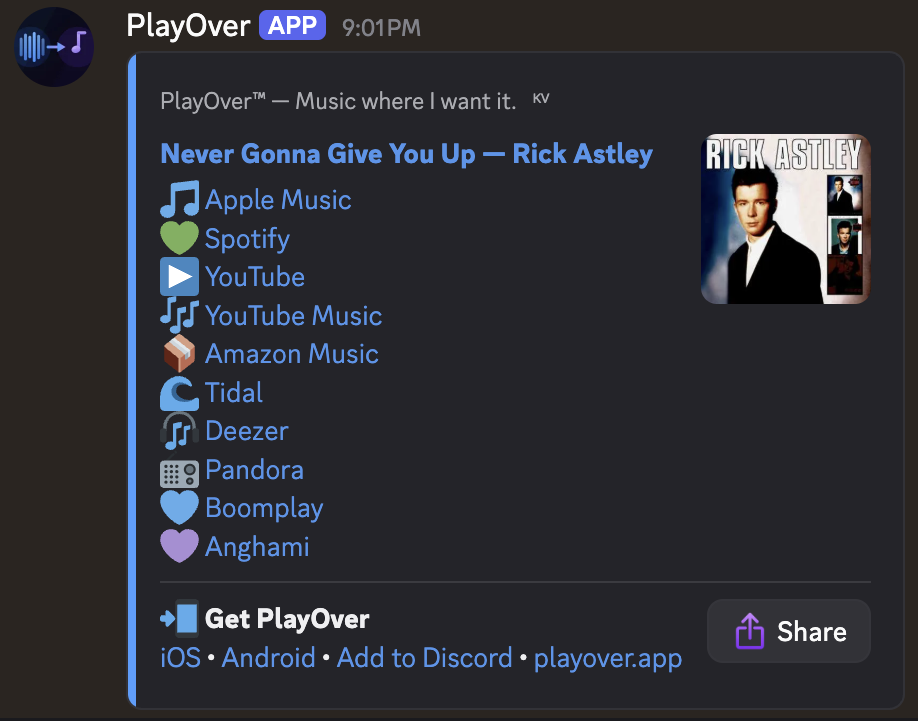
Every PlayOver response includes links for Spotify, Apple Music, YouTube, YouTube Music, Amazon Music, Tidal, and Deezer — so everyone in your server can open it.

🖼️

Rich Embeds

Responses include album art, song title, artist, and clearly labelled platform links — clean and easy to read at a glance.

⚙️

Channel Control

Restrict PlayOver to a specific channel using the /setchannel command. Use /removechannel to go back to responding everywhere.

Fast Responses

PlayOver uses a caching layer so popular songs are resolved nearly instantly. Even new tracks are found within a few seconds.

💰

Completely Free

No subscriptions, no premium features, no per-server fees. PlayOver is free for every server, forever.

Live in your server in 30 seconds.

No configuration required. PlayOver works as soon as you add it.

1

Click "Add to Discord"

You'll be taken to Discord's app authorisation page. Select the server you want to add PlayOver to.

2

Authorise the bot

Click Authorise and complete any verification steps. PlayOver needs permission to read messages and send replies.

3

PlayOver is live immediately

No setup required. Share any music link in your server and PlayOver will automatically reply with links for all 7 platforms.

4

(Optional) Set a specific channel

If you want PlayOver to only respond in one channel, type /setchannel in that channel. Requires Administrator permissions.

Simple slash commands.

/setchannel

Set a channel

Restricts PlayOver to the channel where you run the command. Requires Administrator. Run it again in a different channel to move it.

/removechannel

Remove the restriction

Allows PlayOver to respond in all channels again. Requires Administrator.

/playover

Check settings

Shows the current PlayOver configuration for your server, including which channel it's set to (if any).

Common questions.

How do I add PlayOver to my server?
Click "Add to Discord" at the top of this page or go to playover.app/invite. Select your server from the dropdown and click Authorise. PlayOver will be active immediately — no additional setup required.
Does PlayOver respond to every message?
No. PlayOver only responds when it detects a link from a supported streaming service (Spotify, Apple Music, YouTube, YouTube Music, Amazon Music, Tidal, or Deezer) in a message. Regular messages are completely ignored.
Can I restrict PlayOver to one channel?
Yes. Type /setchannel in the channel where you want PlayOver to respond. It will only reply to music links posted in that channel. Use /removechannel to remove the restriction and allow it to respond everywhere again.
Who can use the slash commands?
The /setchannel and /removechannel commands require Administrator permissions on your server. Regular members won't see these commands. The /playover status command is visible to all members.
Which platforms does PlayOver provide links for?
Every PlayOver response includes links for all 7 supported platforms: Spotify, Apple Music, YouTube, YouTube Music, Amazon Music, Tidal, and Deezer.
What if PlayOver can't find the song?
PlayOver uses multiple fallback methods to find songs. If a song can't be matched across platforms, PlayOver will respond with what it found and note which platforms weren't available. Very new or region-locked releases may occasionally not be findable.
How do I remove PlayOver from my server?
Go to your Discord Server Settings → Integrations → Bots and Apps, find PlayOver, and click Remove. This immediately removes the bot and all its permissions.