● Free · Windows 10 & 11

Song requests for Twitch and Kick, from any music app

A viewer pastes a link from whatever they listen on — Apple Music, Tidal, YouTube Music, Deezer — and PlayOver converts it to the exact track on the platform you play from, then queues it. Plus a now-playing overlay for OBS with a QR code viewers can scan to open the song on their own service.

Twitch Kick OBS overlay anywhere that takes a browser source
Download for Windows Free forever · 64-bit · Updates itself
1

Requests from any platform — not just Spotify.

Turn it on and viewers type !sr with a song name — or paste a link from whatever music app they use. An Apple Music link, a Tidal link, a YouTube Music link: PlayOver converts it to the exact track on the platform you play from and queues it right after the current song. Converting music between platforms is what the rest of PlayOver already does — the request queue is that same engine.

The queue lives in the app — see what's coming, remove anything with one click. Your viewers get the rest without you configuring a thing:

!srRequest a song by name or by link
!queueSee what's coming up
!wrongsongUndo your own last request
!skipMods and the requester skip instantly; everyone else votes

Links from any platform. A viewer pastes a link from an app you have never used and the right track lands in your queue — on Spotify, Apple Music or YouTube Music.
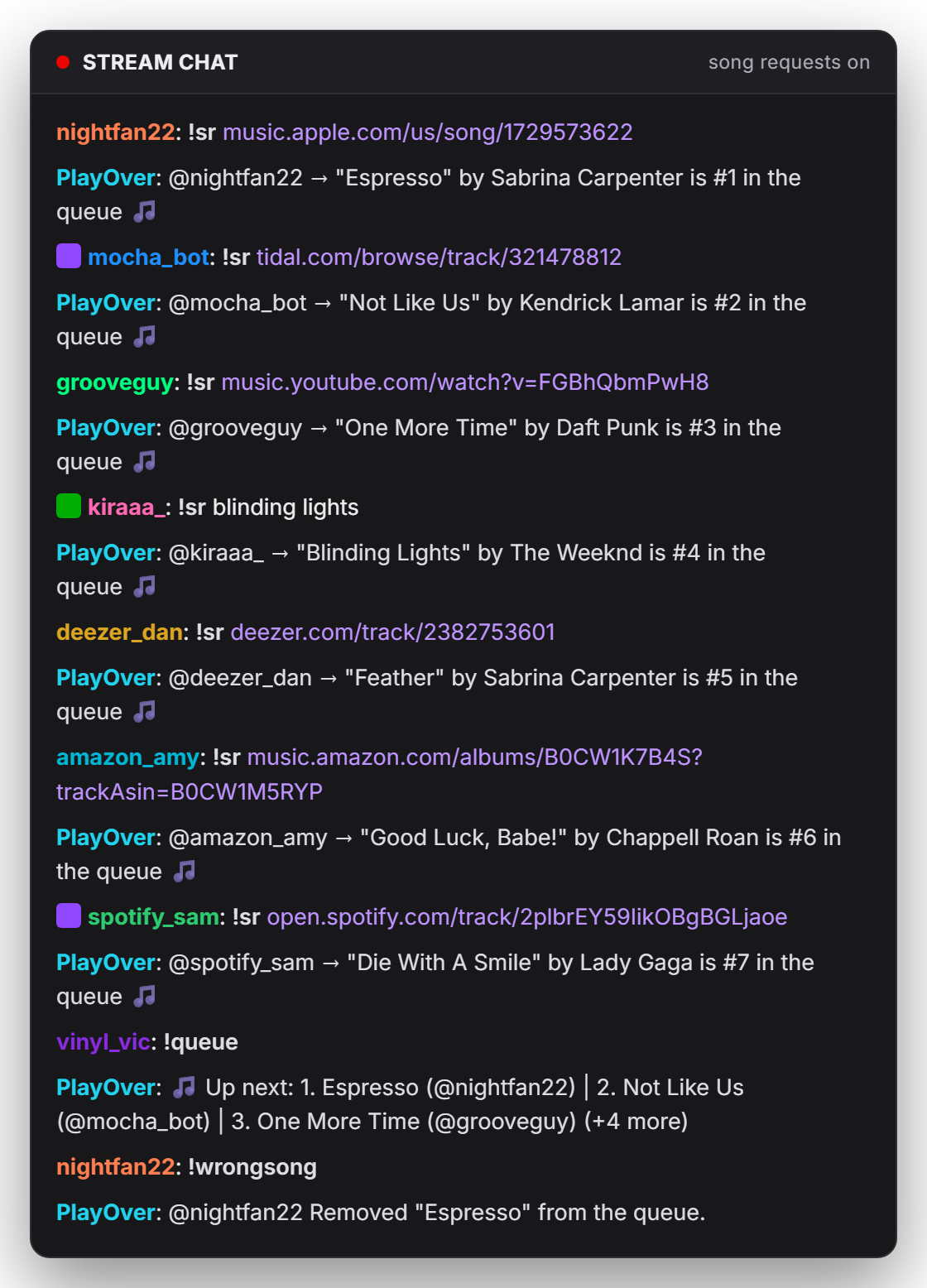
Chat: viewers requesting songs with !sr using Apple Music, Tidal, YouTube Music and Deezer links, with PlayOver confirming each into the queue
2

Put the song on screen, wherever you stream.

PlayOver gives you a browser-source URL. Paste it into OBS and the current track burns into your stream with a QR code viewers can scan to open the song on their platform — not yours. Because it's just a browser source, it works the same on Twitch, Kick, YouTube Live, or anywhere else that takes one.

Pick the full card, the song on its own, or a compact QR-only layout — and the card can scale itself to whatever size you draw the source, so bigger box means bigger text. Seven styles come with it, from the plain card to a neon outline that picks up the colours of the album art — see all seven side by side. Set the background solid when a bright scene shows through. It starts showing your music as soon as the source is on screen, so you can position it before you go live.

The overlay is the one streaming feature that needs no connected channel at all — there's a setup that skips the sign-in entirely. Connecting Twitch or Kick is what adds the chat commands on top.
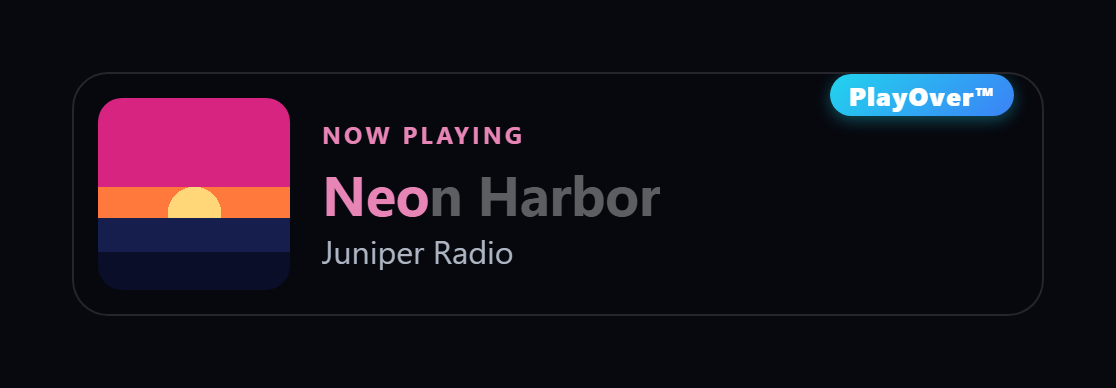
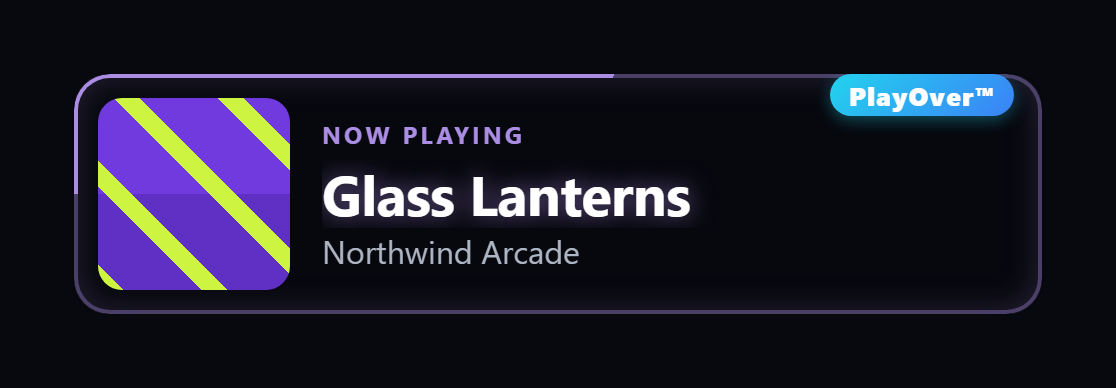
The PlayOver overlay in the Title fill style: the song title fills with colour taken from the album art as the track plays The PlayOver overlay in the Neon style: the card is outlined by a glowing border in colours taken from the album art
Two of the seven styles — Title fill and Neon, which show the song only. See them all side by side.

Kick song requests work exactly like Twitch song requests.

Not a port and not a cut-down version — Kick runs the same request engine, the same queue, the same limits and the same commands. Connect whichever channel you stream on. You don't need an account on the other one, and you can connect both.

Song requests on Twitch

Sign in with Twitch, from the app's Streaming tab
  • Chat requests with !sr — names or links from any platform
  • !song answers in chat, posted as you rather than a bot account
  • Channel-point redemptions, with rejected requests refunded automatically
  • Requests open only while you're live

Song requests on Kick

Connect Kick, from the app's Streaming tab — no Twitch account needed
  • Chat requests with !sr — names or links from any platform
  • !song answers in chat, posted as you rather than a bot account
  • Channel-point redemptions, with rejected requests refunded automatically
  • Requests open only while you're live

Queue to Spotify, Apple Music or YouTube Music.

Pick the one you play from. Whatever a viewer pastes gets converted to it — an Apple Music link from a viewer becomes the right song in your Spotify queue, and the other way round.

Spotify song requests

Spotify Premium

A free Spotify app you create once — the setup walks you through it in about three minutes. One Client ID to paste, and no client secret.

Apple Music song requests

Through the Cider player

Apple Music for Windows has no API of its own, so PlayOver queues through Cider with its RPC server turned on.

YouTube Music song requests

Through Pear Desktop

Pear Desktop is the open-source YouTube Music app for Windows. Turn on its API Server plugin under Settings → Plugins → API Server and click Allow when it asks. No developer account, no API key.

3

Chat asks what's playing. It answers as you.

A viewer types !song and the reply goes out in your chat — posted as you, not as a bot account — with a link each viewer opens on their own service. Someone on Apple Music gets an Apple Music link; someone on Spotify gets Spotify. Same command, same behaviour, on Twitch and on Kick. You can change the word it answers to if !song is already taken in your chat.

Built as a link converter first.

PlayOver already knew how to take a song on one music service and find it on another — that is what the rest of the app does. Song requests inherit all of it, which is why a viewer can paste a link from an app you have never used and the right track lands in your queue.

What PlayOver does
Requests from a pasted link Any supported platform — Apple Music, Tidal, Deezer, YouTube Music and more, converted to yours
Queues to Spotify, Apple Music and YouTube Music
Chat platforms Twitch and Kick, with the same commands on both
Now-playing overlay Included — seven styles, any browser source
QR code viewers can scan Yes — opens the song on their music app, not yours
Chat replies Posted as you, not from a bot account
Price Free — no subscription, no ads, no paid tier

About two minutes, most of it OBS.

PlayOver does more than streaming — Discord Rich Presence, scrobbling and Party Mode are in the same install, and none of them need any of this. These steps are only the streaming half.

1

Install and run it

Download the installer and run it. If Windows shows a SmartScreen warning, click "More info" then "Run anyway" — normal for a new publisher. PlayOver lives in your system tray.

2

Set up the overlay

Open the Streaming tab and follow the setup — sign in with Twitch, or take the route that needs no account at all. Either way you end up with a browser-source URL. Paste it into OBS as a Browser source and it works on Twitch, Kick, YouTube Live, anywhere that takes one.

3

Connect your channel (for chat)

Connect Twitch, or connect Kick, or both. This is what turns on !sr, the !song reply and channel-point redemptions in that chat. A Kick streamer needs no Twitch account for any of it.

4

Turn on song requests

Flip the toggle and point PlayOver at the player you use: connect Spotify, or point it at Cider for Apple Music, or Pear Desktop for YouTube Music. Then set your own limits — how many songs per viewer, how long a track can be, whether requests need channel points.

Common questions.

Does PlayOver work on Kick as well as Twitch?
Yes. Chat song requests, the !song reply and channel-point redemptions all work on Kick, and a Kick streamer needs no Twitch account at all. The OBS overlay is a browser source, so it works on any platform that accepts one. A rejected channel-point request refunds the points automatically on both.
How do song requests work?
Turn on song requests in the Streaming tab and viewers type !sr with a song name — or paste a music link — in your Twitch or Kick chat. The song joins your queue and plays right after the current track. Viewers also get !queue to see what's coming, !wrongsong to undo their own request, and !skip — mods and the requester skip instantly, everyone else votes. You can tie requests to a channel-point reward too. Requests are open only while you're live.
Can viewers request songs with an Apple Music, Tidal or YouTube Music link?
Yes — and that's PlayOver's difference. A viewer pastes a link from whatever music app they use, and PlayOver converts it to the exact track on the platform you play from: an Apple Music link from a viewer becomes the right song in your Spotify queue. Converting music between platforms is the thing PlayOver was built to do.
What do I need to use song requests?
A connected Twitch or Kick channel, plus the platform you play from. Spotify: a Spotify Premium account and a free Spotify app you create once — the setup walks you through it, about three minutes, one Client ID to paste and no client secret. Apple Music: the Cider player with its RPC server turned on — Apple Music for Windows has no API of its own, so Cider is what PlayOver queues through. YouTube Music: Pear Desktop, the open-source YouTube Music app for Windows, with its API Server plugin on — Settings → Plugins → API Server. Connect it in PlayOver and click Allow when Pear asks. No developer account, no API key.
Do I need a Twitch account to use the overlay?
No. Sign in with Twitch is one way to set up the browser-source overlay, but there's a second setup that needs no account of any kind. Connecting a channel — Twitch or Kick — is what adds the chat commands and channel-point redemptions on top. And if you don't stream at all, the rest of PlayOver works with no sign-in either.
My overlay is blank in OBS, but the URL works in a browser. Why?
OBS caches browser sources, so if you added the overlay before connecting your channel — or while no music was playing — it can hold on to that empty page indefinitely, even after everything is working. The fix takes a second: right-click the source in OBS → Properties → Refresh cache of current page → OK.

If it's still blank, check two things. The URL should be the one shown under Browser source overlay in the app — it starts playover.app/overlay. And check the source's Width and Height: OBS defaults to 800 × 600, so if you've set it much smaller the card can be cropped out of view.
Can I take song requests with YouTube Music?
Yes. PlayOver queues YouTube Music requests through Pear Desktop, the open-source YouTube Music app for Windows, with its API Server plugin turned on under Settings → Plugins → API Server. Connect it in PlayOver and click Allow when Pear asks — no developer account and no API key. Viewers can request by name or by pasting a link from any supported platform, and it lands in your YouTube Music queue.
Can viewers request songs into Apple Music?
Yes. Apple Music for Windows has no API of its own, so PlayOver queues through the Cider player with its RPC server turned on. Once that is connected, an !sr in your chat puts the track in your Apple Music queue like any other request.
Is this a Kick song request bot?
It does the job people use one for, but it is not a bot. PlayOver runs on your own PC, and the replies in your Kick chat are posted as you rather than from a separate bot account. Connect your Kick channel in the app's Streaming tab and viewers get !sr, !queue, !wrongsong and !skip, plus channel-point redemptions. No Twitch account is needed for any of it.
Does it work on Mac?
Not the streaming features. Reading what's playing relies on the Windows system media session, which has no equivalent on macOS, so the overlay and song requests are Windows 10 and 11 only. Everything else PlayOver does — opening any music link on your own platform — works on Mac, iPhone and Android too.
Is it free?
Yes. Every feature is free — no subscription, no ads, no paid tier. It updates itself silently in the background, so you install it once and forget about it.

Let your chat pick the music.

Free, Windows 10 and 11, and the overlay works before you connect anything.

Download for Windows