● Free · Windows 10 & 11

PlayOver for Windows

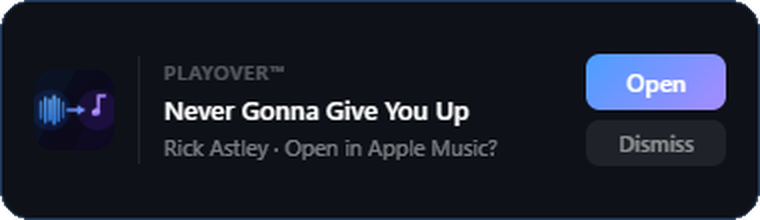
Copy any music link and it opens on your streaming service, not whoever sent it. Then, if you want it, the same app puts what you're playing on your Discord profile, your stream, and your scrobble history — and lets your Twitch or Kick chat request songs from any platform they use. And now it hosts parties: guests add songs from their own music app, and your speakers play them. Free, and no sign-in needed to start.

Download for Windows Free forever · 64-bit · Updates itself
2

Apple Music on Discord. And Tidal. And everything else.

Discord shows Spotify natively and nothing else. PlayOver for Windows fills the gap for the rest — song, artist, album art and a live progress bar on your profile, straight from the Apple Music, Tidal, Amazon Music, Deezer or YouTube Music desktop app.

There's no Discord authorization step, no account, and nothing to link. Install it, flip the switch, play music.

The part nobody else does: every other rich presence tool points its link at your service, which is useless to a friend who isn't on it. PlayOver's card opens on whichever platform the person clicking actually uses.
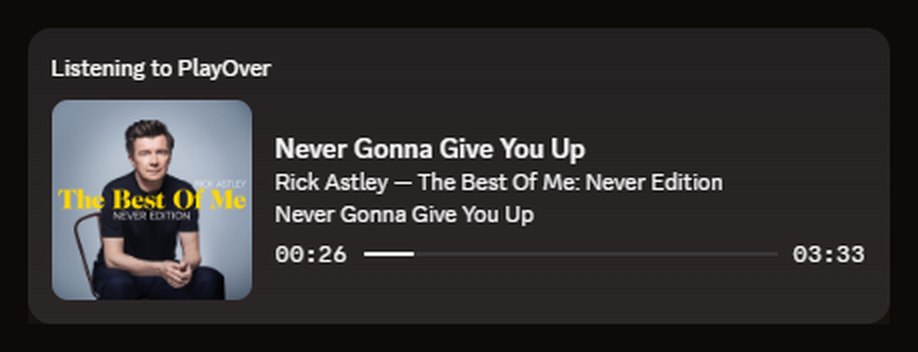
A Discord profile card reading Listening to PlayOver, with album art, song title, artist, album and a live playback progress bar
Anyone who sees it can tap the song to open it on their own music app.
3

Song requests and an overlay for your stream.

If you stream, the same install gives your chat song requests — a viewer pastes a link from whatever music app they use and PlayOver queues the right track on yours — plus a now-playing overlay for OBS with a QR code viewers can scan to open the song on their own service.

Twitch Kick OBS overlay anywhere that takes a browser source

Chat requests, the !song reply and channel-point redemptions work the same on Twitch and on Kick — and a Kick streamer needs no Twitch account at all. See the whole streaming side: the commands, the seven overlay styles, what each platform gets, and the two-minute setup.

Links from any platform. PlayOver takes requests as links from any supported platform — and queues to Apple Music and YouTube Music as well as Spotify. How that works →
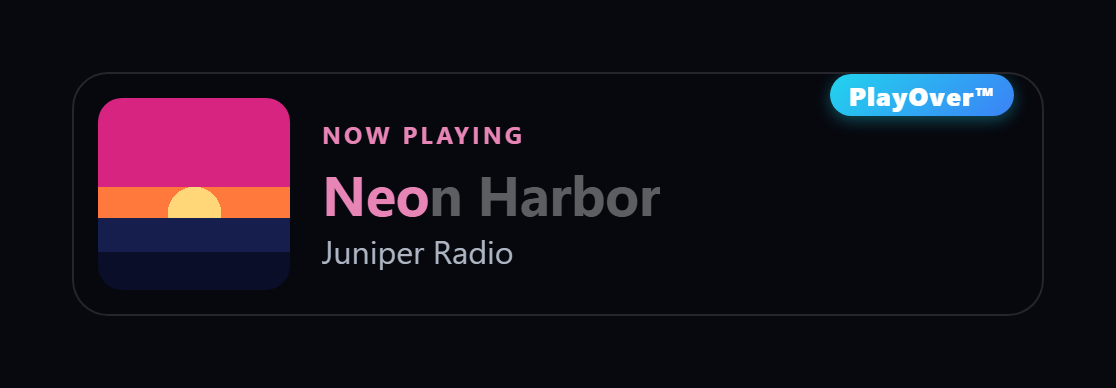
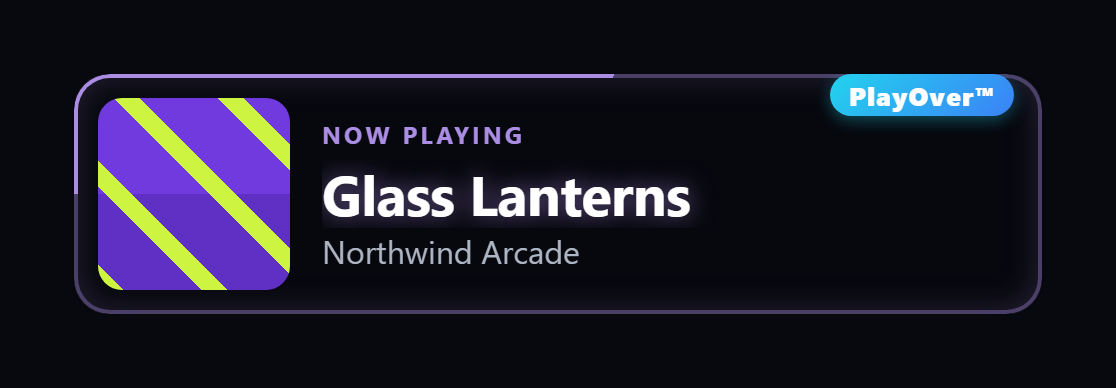
The PlayOver overlay in the Title fill style: the song title fills with colour taken from the album art as the track plays The PlayOver overlay in the Neon style: the card is outlined by a glowing border in colours taken from the album art
Two of the seven styles — Title fill and Neon, which show the song only. See them all side by side.
4

Scrobble from the apps that never could.

Scrobbling is a permanent log of everything you play — your top artists, your charts, your year in review, across every app instead of one. Spotify listeners have had it for twenty years. On Windows, Apple Music has no scrobbling at all, Amazon Music and the YouTube Music desktop app have none either, and Last.fm's own Windows scrobbler stopped being maintained years ago — so those plays just vanish.

PlayOver reads whatever Windows reports as playing and scrobbles it to ListenBrainz — the open, exportable one from the MusicBrainz Foundation. Connecting is one pasted token. No API key to register and no developer account, which is what most Apple Music scrobblers make you do.

It counts properly. A play only scrobbles once you've actually heard half the track, or four minutes — the standard rule — so skipping through an album doesn't pollute your history. Spotify plays are skipped by default, since Spotify already scrobbles at the account level and you'd get doubles.
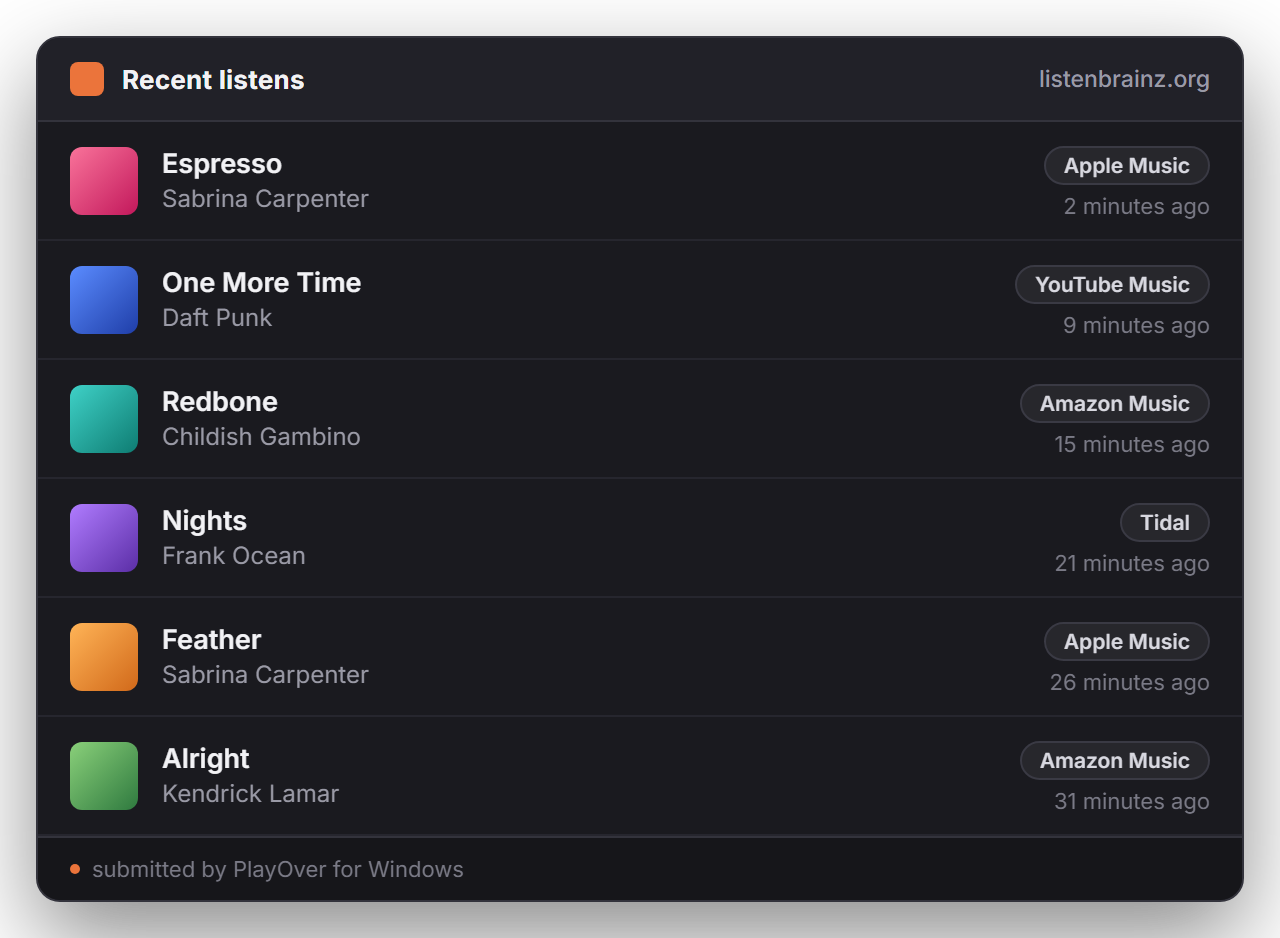
A ListenBrainz listening history showing plays scrobbled from Apple Music, YouTube Music, Amazon Music and Tidal, each tagged with the app it came from and submitted by PlayOver for Windows
5

Host a party. Guests add songs from any app.

Start a party and PlayOver shows a QR code and a five-letter code. Guests scan it and add songs from whatever music app they already use — search, or paste a link from Spotify, Apple Music, YouTube, Tidal and more. There's no app to install and no account to make. Every request lands in one queue and plays through your PC's speakers, with the name of whoever asked for it.

You set the house rules: whether guests can vote to skip and how many votes it takes, whether explicit tracks are allowed, and how many songs each guest can request. Parties are invite-only — PlayOver never broadcasts your party to anyone nearby.

Not in the same room? Start a listen-along instead and everyone's own player stays in sync. Joining someone else's party from your PC works the same way: paste their link or code, pick a name, and choose where it plays — Spotify, Apple Music through Cider, or right in your browser — with a nudge control for Bluetooth speaker delay. When the night's over, Past parties keeps every setlist, ready to save to Spotify or Apple Music.

What hosting needs. Hosting on Spotify needs Spotify Premium and a one-time setup of about three minutes that the app walks you through — no Twitch account required. Apple Music parties play through Cider, or straight from your browser with nothing installed (that needs an Apple Music subscription). See how guests join →

Illustration of the Party tab, using the app's own labels.

Most rich presence tools do one app, one job.

The existing options are single-service and single-purpose: one for Apple Music, another for scrobbling, another for your stream. PlayOver is the one install that covers all of it — and the only one whose links work for the person on the other end.

PlayOver for Windows Single-service RP tools Discord natively
Music apps covered Six desktop apps Usually one Spotify only
Link opens on the clicker's platform Yes No — points at yours No — Spotify
Scrobbling built in Yes Rarely No
Now-playing overlay on stream Yes No No
Twitch & Kick song requests Yes — names or links from any platform No No
Setup Install, done Varies — some need a runtime Account link
Price Free Usually free Free

Six desktop apps. Nothing else.

PlayOver only looks at a fixed list of recognised music apps. Videos, games, streams and browser tabs are never read — Windows can't tell an app whether a browser tab is a song or a film, so PlayOver simply doesn't look.

Reads Apple Music Spotify Tidal Amazon Music Deezer YouTube Music

Songs can be opened on far more services than that — Pandora, Boomplay, Anghami and the rest are all valid destinations for anyone clicking your link. This list is only about what PlayOver can see playing on your own PC.

Two minutes, and only if you want the streaming half.

Discord needs nothing but the install; scrobbling needs one pasted token. The browser-source overlay and song requests are a separate, optional step — skip them entirely if you don't stream.

1

Install and run it

Download the installer above and run it. If Windows shows a SmartScreen warning, click "More info" then "Run anyway" — normal for a new publisher. PlayOver lives in your system tray.

2

Turn on Discord

Showing your music on Discord is off until you switch it on, so nothing appears on your profile without you asking. Flip it on from the window or the tray menu — no sign-in, no authorization prompt.

3

Connect scrobbling (optional)

Paste the token from your ListenBrainz profile once, and every track from every supported app starts landing in your listening history. No API key to register, no developer account.

4

Set up streaming (optional — streamers)

The Streaming tab gives you a browser-source URL for OBS, and connecting your Twitch or Kick channel adds song requests and the !song chat reply. The overlay itself can be set up with no account at all. Full streaming setup →

Common questions.

How do I show Apple Music on my Discord profile?
Install PlayOver for Windows on Windows and turn on the Discord option. It reads the Apple Music desktop app and publishes the track to your profile as Rich Presence — song, artist, album art and playback progress. There's no sign-in, no Discord authorization and no account to create. Discord only supports Spotify natively, so any other service needs a helper app like this one.
Does it work with Tidal, Amazon Music, Deezer and YouTube Music?
Yes. PlayOver reads the Apple Music, Spotify, Tidal, Amazon Music, Deezer and YouTube Music desktop apps. Most rich presence tools handle exactly one service, so switching apps means switching tools — this is one app for all of them.
What makes the Discord card different from other rich presence apps?
Other tools link the song back to the service you use, which is useless to a friend who's on something else. PlayOver's card links to a PlayOver smart link, so whoever clicks lands on the song in their own music app. The song title and artist are clickable as well as the button, which makes it a much bigger tap target — including in the Discord mobile app.
How does it know I copied a music link?
PlayOver watches your clipboard in the background. When you copy a link from a supported streaming service it recognises it and shows a small popup near your cursor with the song and your platform. It doesn't read or store anything else you copy, and you can turn the whole thing off in one click if you'd rather it didn't watch at all.
Which apps does the link conversion work from?
Anywhere you can copy a link — Chrome, Firefox, Edge, Brave, Discord, Slack, WhatsApp Desktop, your email client, a text file. If you can press Ctrl+C on it, PlayOver sees it.
Can it scrobble Apple Music or Amazon Music on Windows?
Yes — to ListenBrainz. Apple Music, Amazon Music and the YouTube Music desktop app have no native scrobbling on Windows, and Last.fm's own Windows scrobbler is no longer maintained, so those plays normally just vanish. PlayOver reads what Windows reports as playing and scrobbles it for you, across every supported app at once. Connecting takes one pasted token — no API keys to register, unlike most Apple Music scrobblers. Last.fm support is planned but is not in 2.0.
Does it read my browser or record what I watch?
No. PlayOver only reads a short list of recognised desktop music apps. Videos, streams, games and browser tabs are never read, because Windows doesn't tell an app whether a browser tab is a song or a film — so PlayOver doesn't look at browsers at all. The tradeoff: music played in a browser tab, like the Spotify web player, isn't picked up. Use the desktop app instead.
Is Discord presence on by default?
No. Showing your listening on Discord is off until you turn it on, and you can switch it off any time from the tray menu. Nothing is published to your profile until you opt in.
Do I need a Twitch account?
Only for the chat side of streaming. Discord Rich Presence, ListenBrainz scrobbling and Party Mode work with no Twitch account and no sign-in at all — and even the browser-source overlay has a setup that needs no account. Connecting a channel, Twitch or Kick, is what adds song requests and the !song reply. More about streaming.
Is this the same as the PlayOver Discord bot?
No — different things. The PlayOver Discord bot lives in a server and converts music links other people post in chat, so everyone can open them on their own platform. PlayOver for Windows runs on your PC and shows what you're personally listening to on your own Discord profile. They work happily together.
How does Party Mode work?
Start a party from the Party tab and PlayOver shows a QR code and a five-letter code. Guests scan it or open the link in any phone browser, then add songs by searching or pasting a link from whatever music app they use. Every request goes into one queue and plays through your PC's speakers. You choose whether guests can vote to skip, whether explicit tracks are allowed, and how many songs each guest can request. More about Party Mode.
Do party guests need the app or an account?
No. Guests join from a phone browser with nothing to install and no account to make. Listening along on their own device is optional: it works with Apple Music right in the browser, or with Spotify through PlayOver for Windows.
What do I need to host a party?
PlayOver for Windows plus either Spotify Premium, with a one-time setup of about three minutes that the app walks you through (no Twitch account needed), or Apple Music through the Cider player. You can also host an Apple Music party straight from your browser with nothing installed, which needs an Apple Music subscription.
Does it work on Mac?
Not the now-playing features. Reading what's playing relies on the Windows system media session, which has no equivalent on macOS, so Discord presence, scrobbling and the stream overlay are Windows 10 and 11 only. Everything else PlayOver does — opening any music link on your own platform — works on Mac, iPhone and Android too.
Windows showed a SmartScreen warning. Is it safe?
Yes. SmartScreen warns about apps from publishers who haven't yet built up enough installs to earn a reputation with Microsoft. Click "More info" then "Run anyway" to proceed.
Is it free?
Yes. Every feature is free — no subscription, no ads, no paid tier. It updates itself silently in the background, so you install it once and forget about it.

Put your music where people can see it.

Free, Windows 10 and 11, and you don't have to sign in to anything to start.

Download PlayOver for Windows