Keep your stream music out of your VODs
On Twitch, music can play live and stay out of the saved broadcast. OBS sends Twitch a second audio track that is used only for the VOD, and you leave the music off it.
It takes three changes in OBS: give the music its own audio source, turn on the Twitch VOD Track, and leave the music off that track. Kick, TikTok LIVE and YouTube have no separate VOD track, so this works on Twitch only.
1. Give the music its own audio source
OBS can only leave the music out if the music is a source of its own. On Windows that is an Application Audio Capture source, which records one app and nothing else. It needs OBS Studio 28 or later, on Windows 10 version 2004 or later or Windows 11.
- In the Sources dock, click + and choose Application Audio Capture (BETA) from the list.
- Name it something you will recognise, like Music.
- Pick your music app’s window from the list. Which app that is depends on how you play music: see which app to capture, below.
- Set the window match priority to match by the app’s executable name. A music app’s window title changes with every song, and matching by executable keeps the capture on the app whatever the title says.
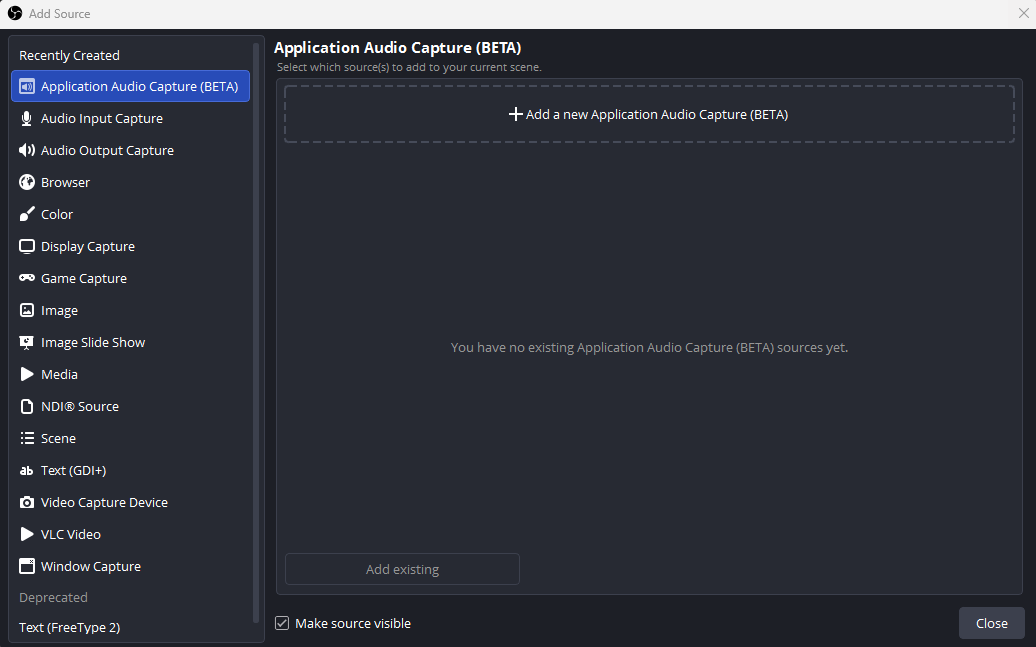
Desktop Audio hears your music too. Desktop Audio captures everything your PC plays, so while it is on, the music reaches your VOD through it. OBS’s own guide says to disable Desktop Audio in Settings → Audio when you use Application Audio Capture. Then give each sound you want its own source: another Application Audio Capture for a game or your alerts, or tick Capture Audio (BETA) on a Game Capture or Window Capture source (OBS 30.1 or later).
Some apps don’t work with Application Audio Capture. For those, OBS’s guide routes the app through a virtual audio cable instead, which also gives it a source of its own.
2. Turn on the Twitch VOD Track
In Settings → Stream, the service has to be Twitch: OBS only offers the VOD track when you stream to Twitch. Then go to Settings → Output.
- Output Mode: Simple. Tick Enable Custom Encoder Settings (Advanced), then tick Twitch VOD Track (Uses Track 2).
- Output Mode: Advanced. On the Streaming tab, tick Twitch VOD Track and choose a track. Track 2 is the usual choice.
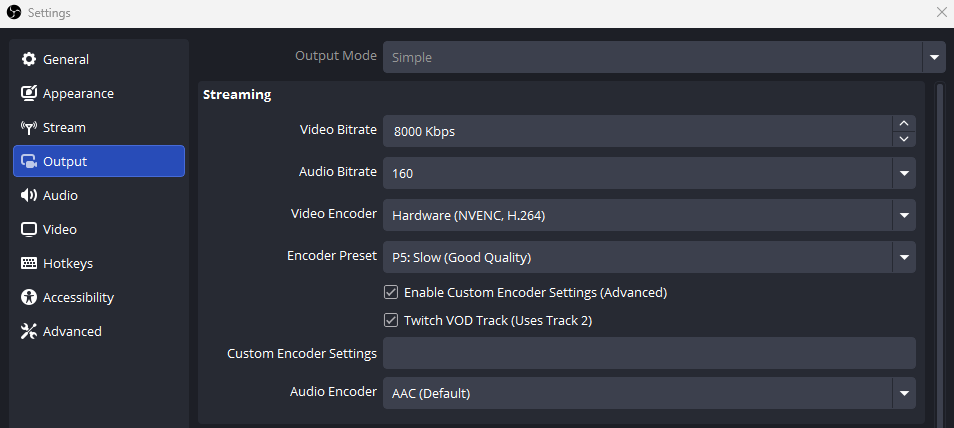
Viewers hear track 1 live. The VOD track is what Twitch keeps in the saved broadcast.
3. Leave the music off that track
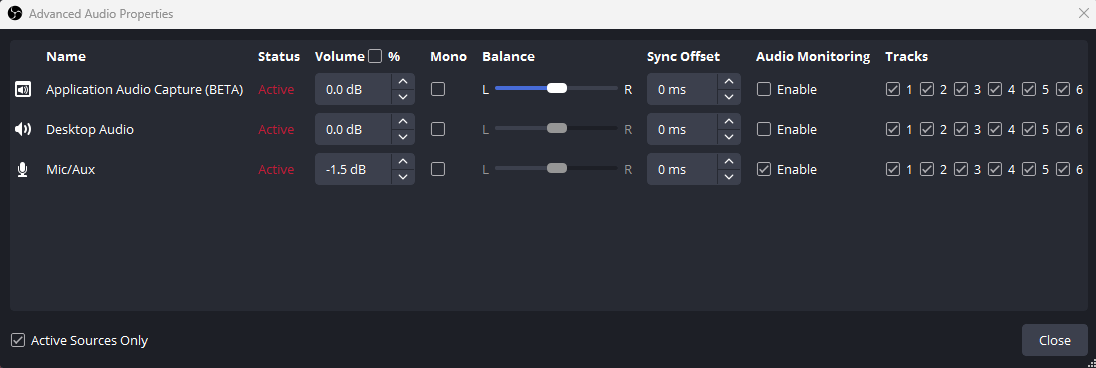
Open Edit → Advanced Audio Properties, or click the cog in the Audio Mixer. Every audio source has a row of Tracks checkboxes, numbered 1 to 6.
On your music source, keep track 1 ticked so viewers hear it live, and untick your VOD track (track 2, unless you chose another). Leave your other sources ticked on both, so your voice, game and alerts are in the VOD as usual.
Test it before you rely on it
Stream for a few minutes with music playing, then watch the VOD. You should hear everything except the music. If you use Twitch’s Enhanced Broadcasting, test with it on: neither OBS’s nor Twitch’s documentation says whether the two work together.
There is only a VOD to check if Twitch saves one. That is Store past broadcasts, in your Creator Dashboard under Settings → Stream.
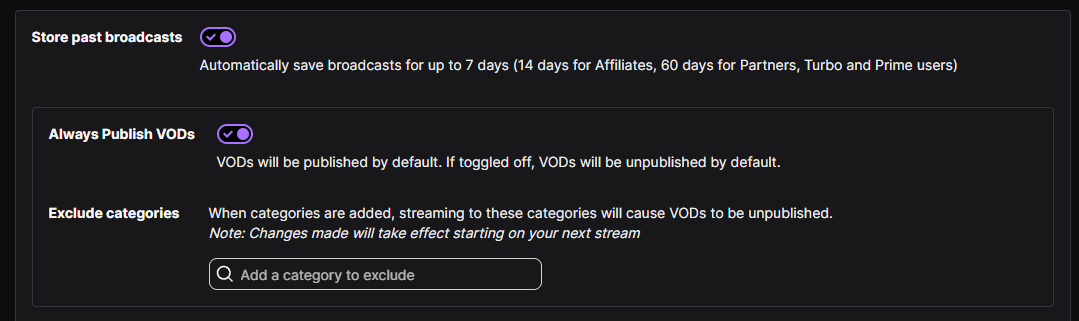
On the same page, Copyrighted Audio Warnings tells you when Twitch finds copyrighted audio in your VODs several times within 24 hours, and Twitch then stops publishing your VODs by default.

Twitch scans clips for copyrighted audio as well as VODs, and its help does not say whether a clip takes its sound from the live track or the VOD track. Don’t assume clips are covered.
Which app to capture with PlayOver
PlayOver doesn’t play the music. Song requests play in your own player, so your player is the app to capture:
- Spotify: the Spotify app.
- Apple Music: the browser you keep playover.app/apple open in, or Cider if you play through Cider. OBS captures a browser as one app, every tab together, so keep other tabs quiet or use a browser just for music.
- YouTube Music: Pear Desktop.
- PlayOver Aux: the PlayOver Aux app, whichever service you play in it.
The now-playing overlay makes no sound, so it needs nothing here.
Kick, TikTok LIVE and YouTube
None of them has a separate audio track for the saved video, so whatever your stream plays is in it.
- Kick: not supported. OBS offers the VOD track only for Twitch, and Kick’s help center documents no other way to do it.
- TikTok LIVE: not supported. TikTok keeps a LIVE replay for 30 days, and you can delete one, but its help describes no separate replay audio.
- YouTube: not supported. YouTube Live accepts one audio stream. YouTube says it scans live streams for matches while they are live, and makes Content ID claims after the stream ends if you keep it as a video.
What this page is not
This keeps music out of your Twitch VODs. It is not legal advice, and it changes nothing about what each platform lets you play live. Twitch says that owning or streaming a song is not permission to put it in a VOD. Read the platforms’ own rules: Twitch on copyrighted audio and YouTube on copyright in live streams.
Get PlayOver
Song requests from your chat, played in your own music app. Free, on Twitch, Kick and TikTok LIVE.