Spotify song requests for your stream
PlayOver puts your chat’s song requests straight into your
own Spotify queue, on Twitch and Kick. A viewer types !sr with a song
name — or pastes a link from Apple Music, Tidal, Deezer or YouTube Music — and
PlayOver finds that exact track and queues it in Spotify.
Free, no paid tier. You need Spotify Premium and a Windows PC.
Setting up Spotify, once
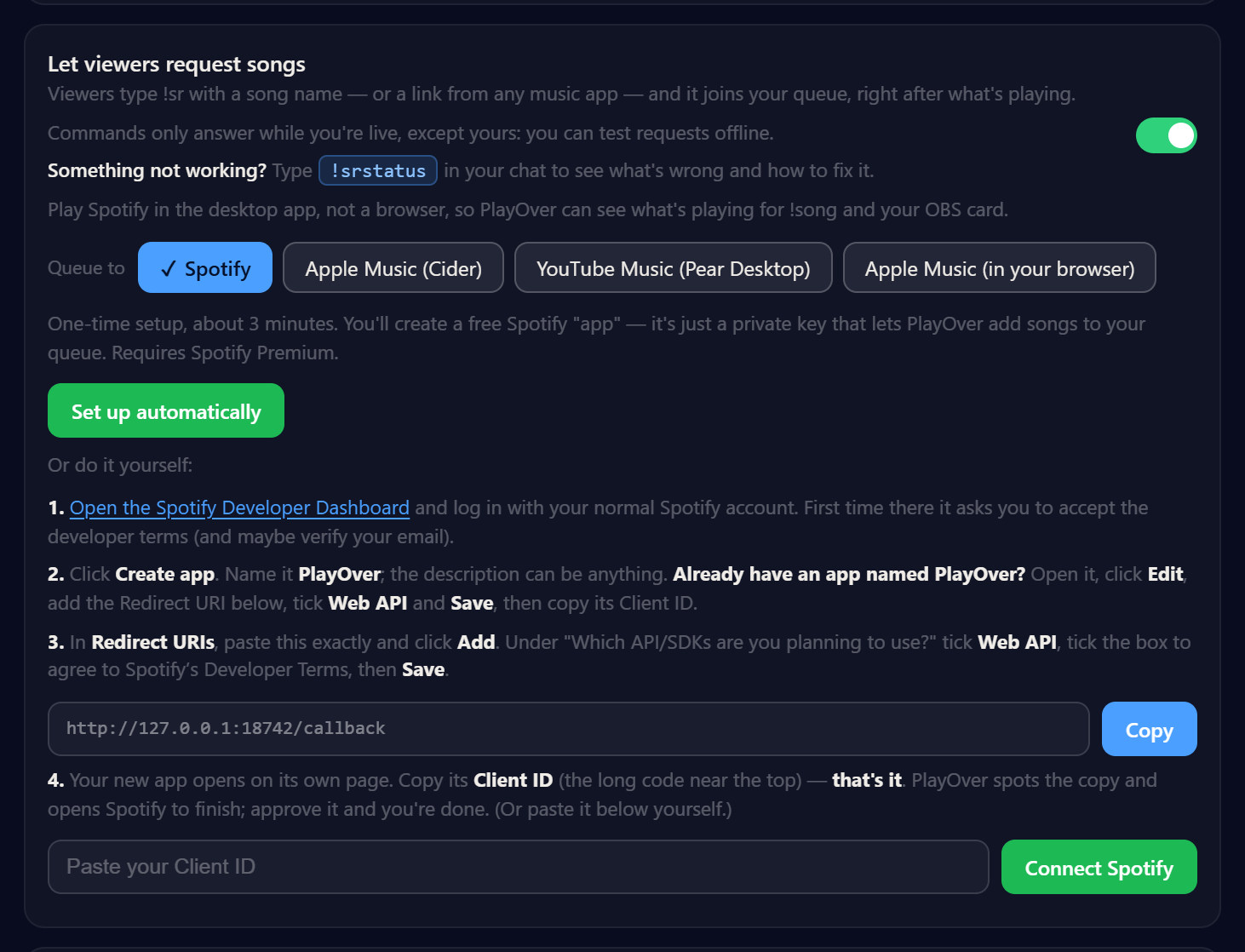
PlayOver’s own words for this step: “One-time setup, about 3 minutes. You’ll create a free Spotify ‘app’ — it’s just a private key that lets PlayOver add songs to your queue.”
There are two ways on that screen. Set up automatically does it for you, or you can do four steps by hand: open the Spotify Developer Dashboard, create an app, add the redirect URI PlayOver shows you, tick Web API, and copy the Client ID back into PlayOver.
The only thing it ever asks for is the Client ID. There is no client secret anywhere in PlayOver — sign-in uses PKCE, so there is no secret to create, paste or lose.
Run Spotify in the desktop app
PlayOver asks for this in the app itself: “Play Spotify in the desktop
app, not a browser, so PlayOver can see what’s playing for !song and your OBS
card.” That is about PlayOver reading what is currently playing — the
!song command and the now-playing overlay — so if you keep Spotify in a
browser tab, those are the two things that go quiet.
Your viewers need nothing
No Spotify account, no PlayOver account, nothing to install. A viewer needs only their Twitch or Kick chat account. They can send a song name, or a link from whatever music app they happen to use, and it arrives in your Spotify queue as the right track.
What your viewers type
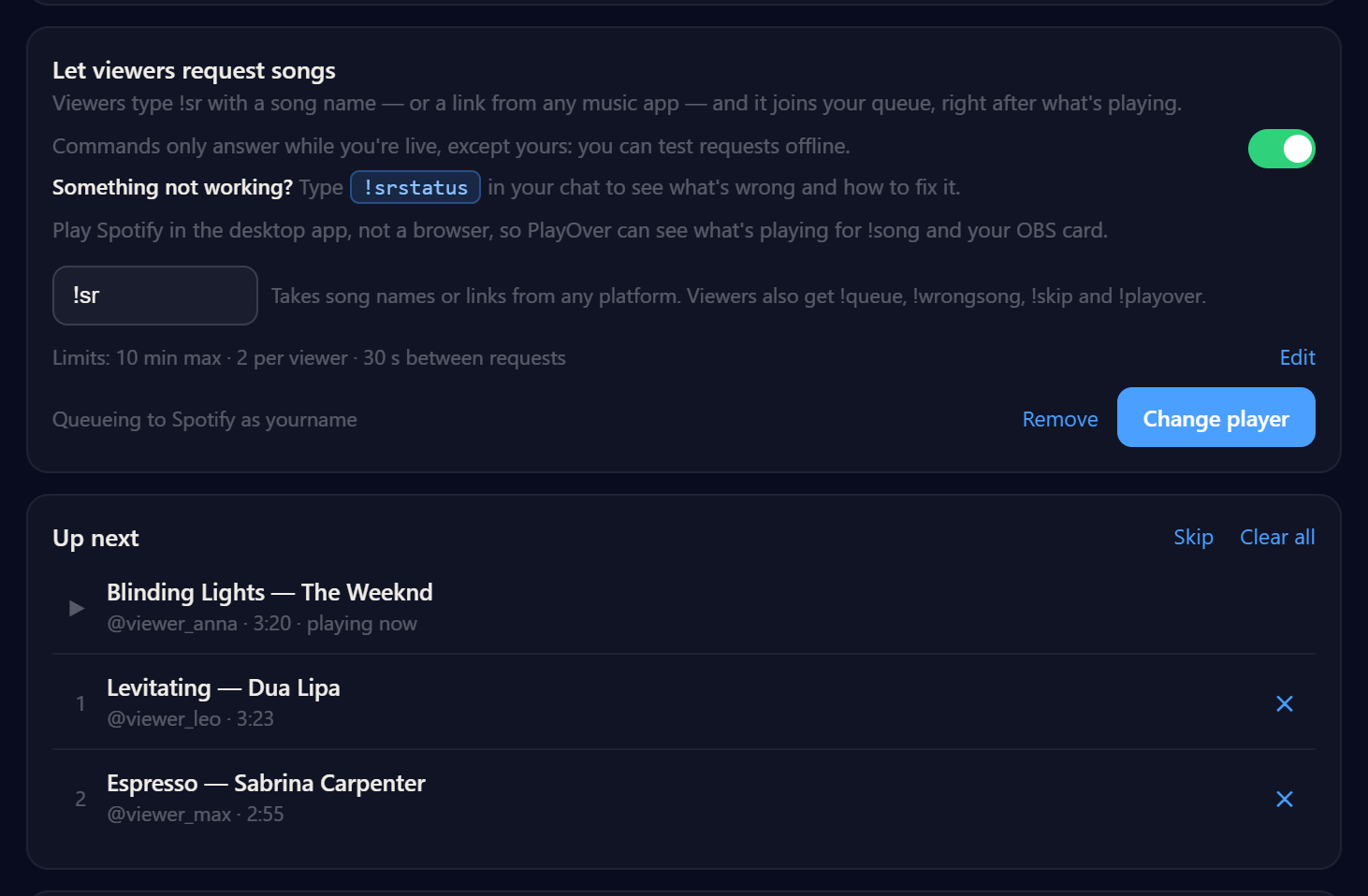
The request command is !sr by default and you can change it.
Viewers also get !queue, !wrongsong, !skip and
!playover. If a song cannot be found, chat says so — and in
channel-point mode the points go back.
Commands answer only while you are live, except yours, so you can test
before a stream. !srstatus in your own chat tells you what is wrong if
something is not working.
The limits are yours
You set the maximum song length, how many songs one viewer can have waiting, the cooldown between their requests, and how many votes it takes to skip. The queue holds up to 50 songs. You and your mods can remove or skip anything in it; viewers can vote to skip. There is no blocklist, so moderation is removing and skipping rather than filtering in advance. More on how requests behave on stream.
Free, with no paid queue cap
Every feature is free — no subscription, no ads, no paid tier and no paid queue cap — including the now-playing OBS overlay, in ten styles, with a QR code viewers can scan to open the song on their own service.
Get PlayOver
Free, nothing for your viewers to install or sign up for, and Spotify setup takes about three minutes.